Verifying a domain for your company
You can verify your ownership of domains with Trooth to confirm your company's identity.
Who can use this feature?
Owners of a company workspace can verify a domain for a company.
About domain verification
After verifying ownership of your company's domains, a "Verified" badge will display on the company's Trust Profile.
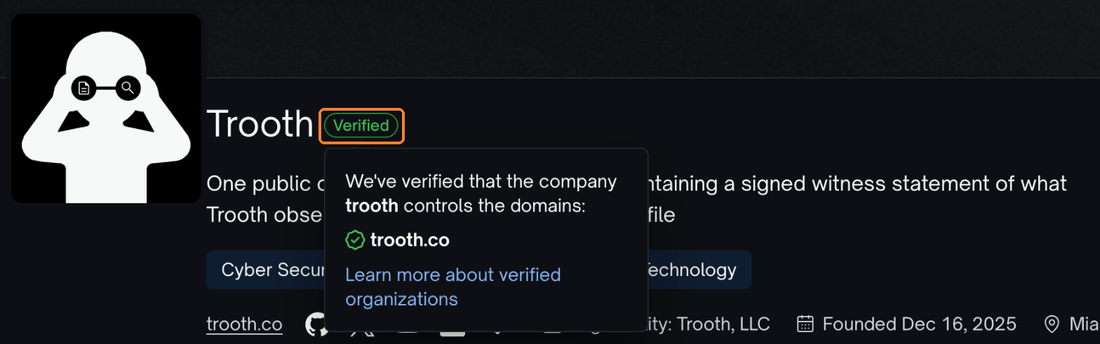
To display a "Verified" badge, the website shown on a company's Trust Profile must match the verified domain or domains. If the website shown on your Trust Profile is hosted on a different domain from the one your profile is listed under, you must verify both domains. A www. address and the bare domain are one domain on Trooth, so verifying example.com also covers www.example.com.
Only a domain verified with a DNS TXT record counts toward the badge. A work email code or a sign-in through your company's identity provider confirms that you control a domain, and your Trust Profile says so, but it does not display the badge.
Trooth looks for the TXT record again on a schedule. If the record is missing three times in a row, the domain stops counting toward the badge until the record is back.
Verifying a domain for your company
To verify a domain, you must have access to modify domain records with your domain hosting service.
- In the left sidebar of your Trooth workspace, click Trust Profile.
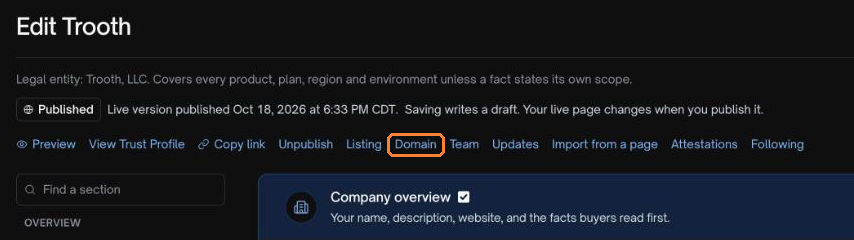
- Under your company name, click Domain.
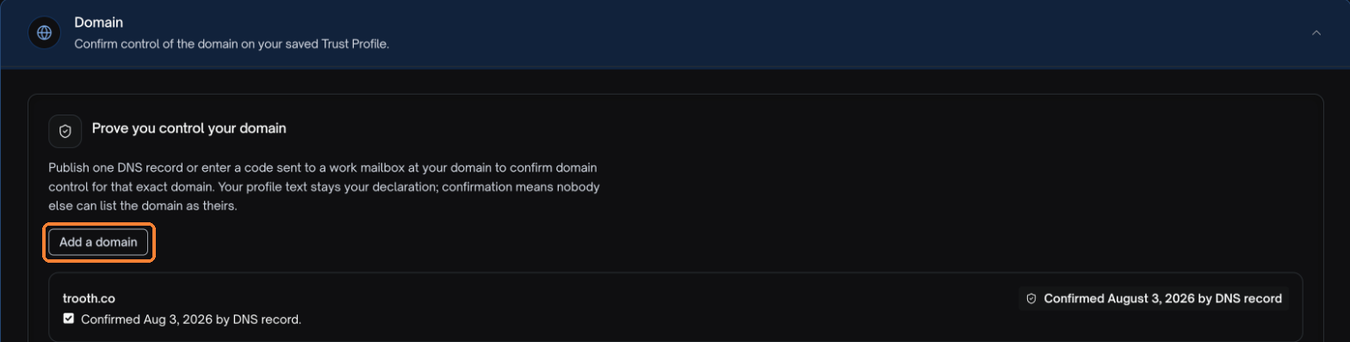
- If your company has already verified a domain, click Add a domain.
- Under "Your company domain" or "What domain would you like to add?", type the domain you'd like to verify.
- Confirm that you are an authorized representative of the company, click Add a DNS record, then click Get my record.
- Follow the instructions under "Record ready" to create a DNS TXT record with your domain hosting service. The record's name is
_trooth-challengefollowed by your domain, and its value starts withtrooth-domain-challenge=. - Wait for your DNS configuration to change, which may take up to 72 hours. You can confirm your DNS configuration has changed by running the
digcommand on the command line, replacingexample.comwith your domain. The command output should show your new TXT record.dig _trooth-challenge.example.com +nostats +nocomments +nocmd TXT - After confirming your TXT record is added to your DNS, follow steps one and two above to navigate to your company's domain settings.
- Next to the domain that's waiting for its DNS record, click Check now.
- When the domain says "Confirmed by DNS record", the "Verified" badge displays on your company's Trust Profile.
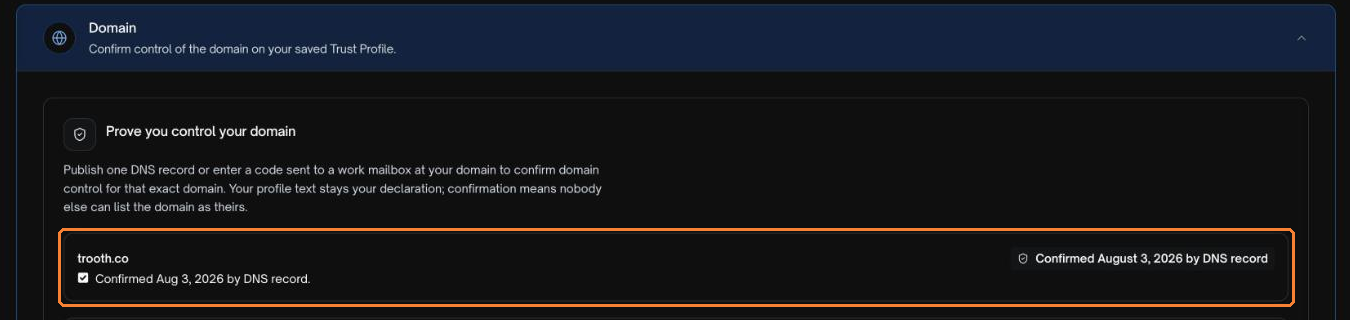
- Keep the TXT record at your domain hosting service. Trooth looks for it again, and a domain whose record is gone stops counting toward the badge.
Approving a domain for your company
You can approve a domain your company does not own, such as a contractor's or an agency's, so workspace notifications can go to addresses on it. An approved domain needs no DNS record. It shows Approved in your settings and never shows as Verified on your profile.
- In the left sidebar of your Trooth workspace, click Trust Profile, then, under your company name, click Domain.
- Under Approved domains, click Approve a domain.
- Type the domain, then click Approve domain.
Only owners and admins can approve a domain. A domain your company already confirmed does not need approving.
Restricting email notifications to confirmed or approved domains
Once your company has at least one confirmed or approved domain, you can send workspace activity emails, such as a questionnaire question assigned to someone or a mention in a comment, only to members whose address is on one of those domains or a subdomain of one. Everyone still sees the activity in Trooth. Invitations, sign-in and account emails are never restricted.
- Under Approved domains, select Restrict email notifications to approved domains and domains your company confirmed.
- Click Save.
Removing a verified domain
- At your domain hosting service, delete the TXT record whose name starts with
_trooth-challenge. - After Trooth's check misses the record three times in a row, the domain is no longer listed under the "Verified" badge. If it is the domain your Trust Profile is listed under, the badge no longer displays.